Thursday, December 29, 2011

How to Install Windows 7 from USB Drives?

Install windows 7 from USB is one of the great features for new personal computer or notebook. Install windows 7 from usb is more easier and faster than using DVD or CD. Today is my first experience creating or make usb bootable in other words extract iso for windows 7 in usb drive. The steps hos to install windows 7 from usb is easy and straight forward. Just follow step by step and you will reach success.
First of you will need usb drive with minimum space 4GB. You also need the iso file for windows 7 either in DVD,CD or at your hard drive.
You need to download WinToFlash applications which is the main software we require to make usb bootable. After download it , run the exe file and click Accept. Refer to pictures given below.
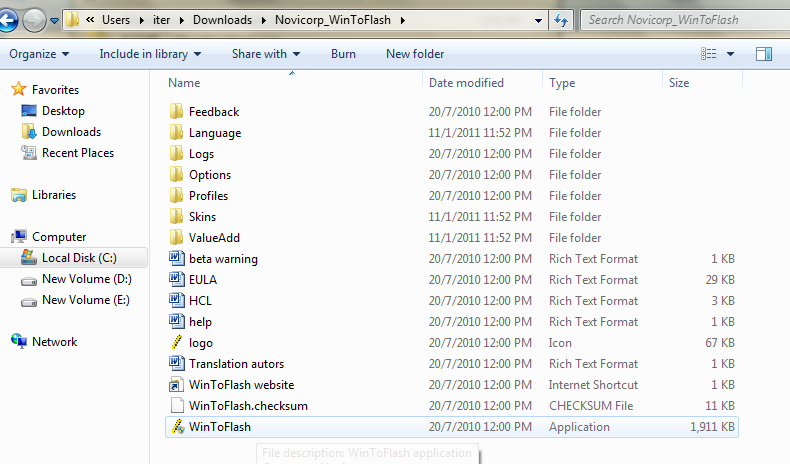
Click exe file to run
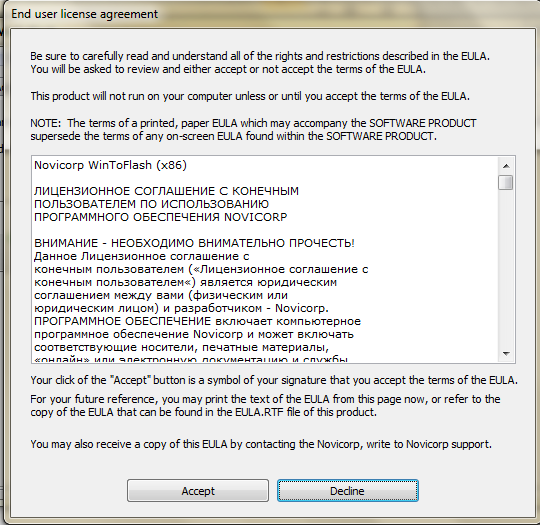
Accept
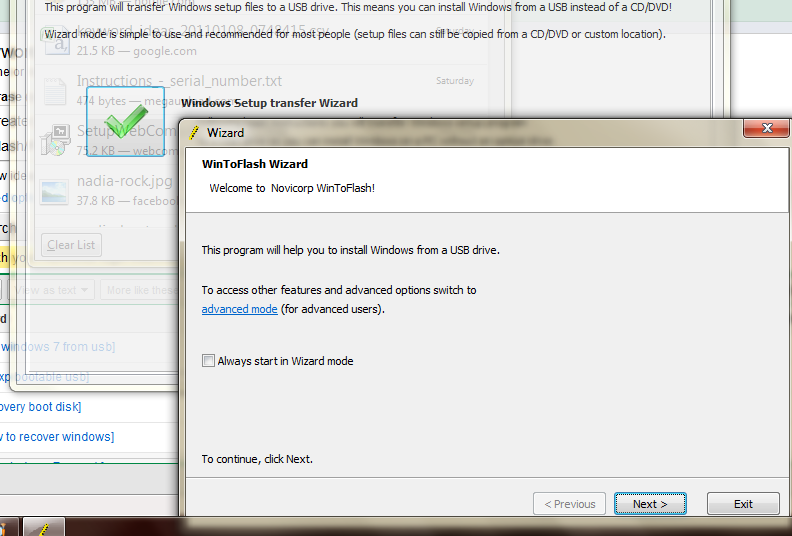
Click windows transfer wizard and after that click next.
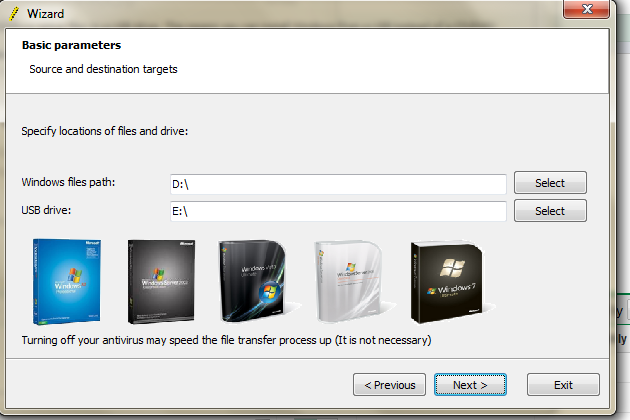
Specify your source file and USB by clicking the Select button.
Accept and continue.
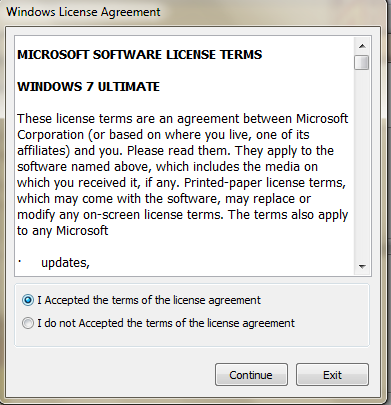
Wait until the process finish.
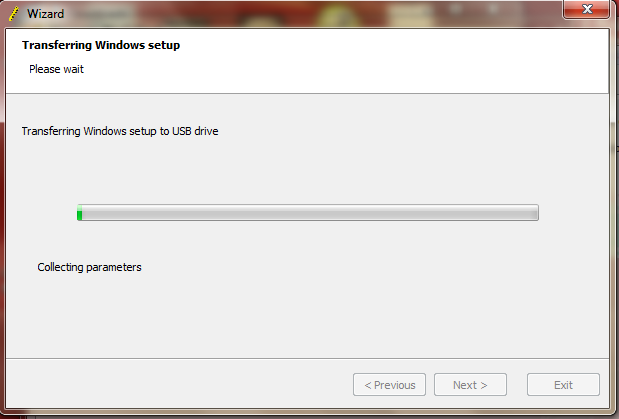
Your usb drive now are windows 7 bootable and can be used to install windows 7 from usb.

Hos to install windows from USB?
Restart the computer and select USB Flash drive from boot menu, the installations process is same as using CD or DVD. Good luck. If you have another method how to install windows 7, share it here by giving your comments. Good luck…

Sunday, December 18, 2011

How to Download Torrent Files with IDM:


  • Open  www.torrentz.eu .Search and Download the torrent file (.torrent) of your desired file from there.


  • Once you have downloaded that torrent file then go to the website www.torcache.net
  • Now upload that torrent file that you have just downloaded and click on the cache button.
122 How to Download Torrent Files with IDM
  • This will generate a new torrent link of your file just copy that link.
131 How to Download Torrent Files with IDM
  • Now go to the www.torrific.com and get register there if you don’t have account  otherwise login into your account.
  • In the text field paste that new torrent file that you have get in the 4th step and click on get button.
141 How to Download Torrent Files with IDM
  • You will see all the torrent files that are present in that torrent . Click on initiate bittorrent transmission button.
151 How to Download Torrent Files with IDM
  • Now all the files that are present in that torrent file will be available to download just click on any of the file that you want to download and IDM window will popup.
16 How to Download Torrent Files with IDM
  • Now Start Downloading your file.
You should use this method only if you are getting very poor speed with your torrent client because if you download it with IDM the link will not be resumable and you have to finish it without breaking your internet connection.

When you are away from your desk somebody (colleagues,friends) may try to login into your computer by guessing your password.We will use windows security settings to temporarily lock your computer if wrong password entered more than couple of times.This will make it harder to guess your password as after 3 wrong passwords your system will get locked for 30 minutes
 In the Start up search box type Local Security Policy and press enter.

  • From the left window pane expand Account Policies and select Account Lockout Policy option in it.
  • Now in the right window pane look for the Account lockout threshold option and double click on it.
  •  A new window will be open and give the value after how many invalid password attempts you want to lock your computer.
  • Click on Apply button and a window will be open telling you Account will lock down for 30 minutes. You can also change the time settings by clicking on the Reset account lockout counter according to your need.
  • Now click OK.
That’s it. Now your computer will be temporally locked for some time that you had set in the settings when someone will enter wong password.

These are general computer tips and tricks that are mostly operating system independent.They are useful on almost all window platforms windows xp,windows vista and windows 7.Below are some Pc tips and tricks.
1. Tips and Tricks To Increase Speed Of Computer (pc).
Problem:Computers seems to run faster when they have newly installed operating sustems but they keep on slowing with the passage of time.
Solution:
• Use Defragmentation softwares to increase the speed.
• Remove unneccessary programs from startup.
• Remove unwanted installed softwares from computer.
• Use a good antivirus program to protect your computer from viruses,worms and malwares.
• Clean the registry of the computer using a good software.
(Note:Donot edit registry yourself if you are no expert)
2.How to Consume Less Laptop battery And Increase Performance.
• Close unwanted programs running in background becuase these applications usually drain out your battery.Browser tabs use to consume a lot of memory of computer.So always close unnecessary browser tabs.Stop the bluetooth or wifi of the system if they are not required.
3.How to Enhance Gaming Experience On your Computer
• Gaming Experience on pc or laptop can be increased by switching the theme of the window to classic view.It frees up a lot of memory of the computer.The steps explained above will also help you to increase your gaming experience.A Software called 3d analyser can give a real help to people having very old pc.

Windows 7 has been a great product from Microsoft.Its features like problem step recoder( psr),sticky notes,new calculator,improved notepad and wordpad are wonderful.What I did not liked is its logon screen.So I decided to change the background of the logon screen to my custom wallpaper.I found three methods to change the logon screen and i will explain all of the three methods in this post.
1.Using Logonstudio:-Logonstudio is a free application provided by stardock.This application is compatible with Microsoft windows 7,vista and xp.It comes preloaded with many beautiful logon screens and you can literally thousands of them from wincustomize.com .Logonstudio is fairly simple to use all you have to do is the select the background theme and apply it.
logonstudio Tricks Change Windows 7 Logon Screen Background
The system requirements for windows logonstudio are

Windows 7, Vista or XP
●Minimum screen resolution: 1024 width and 768 height
●10MB free drive space
●512MB RAM
2. Windows 7 Logon Screen Rotator:-This utility is of great use for all those who likes change.You can  specify 10 images that will be changed every time you logon to your windows.So,you wont have to get bored by seeing the same logon screen over and again.The best part of this utility is that not installation is required for  it.To use this application you have to do the following things.
1Open the zip file.Click on the exe file.
2.Now specify the custom wallpapers you want to use as logon screen.
logonscreenrotator Tricks Change Windows 7 Logon Screen Background
3.Click on “Enable and Exit”.And that’s it.You will see a new logon screen when you login next time.
4.Now if any time you feel the that you want to revert back to original windows 7 logon screen then click on”revert to windows 7 default logon screen”.
Note:this application requires that your custom wallpapers should be less then 256 kb in size.
3. Windows 7 Logon Screen Changer:-This is another utility that will allow you to change the logon screen.It is fairly simple to use.It also provides an option to revert back to the original windows 7 logon screen.
logonscreenbackgroundut Tricks Change Windows 7 Logon Screen Background

Changing the registry is usually tricky for most of the users and any wrong change can create problems in your windows operating system.Registry changes are recommended only when you have no way around to solve your problems.
The best and easiest way is to use free third party softwares as they are more secure and can easily configure your system as you want without putting any sweat.Moreover these softwares are not bulky and doesn’t consume too much system resources.

  • Download Windows Start up Sound Changer.It is a tiny (only 318 kb) and portable(doesn’t require installation) software.
  • Open the software and Click on Replace Button
  • replace Easiest Method to Change Startup Sound And Background in Windows 7
  • Select your favorite Sound or song (it must have .Wav extension)
That’s it.You can also restore the default sound at any later stage by clicking on Restore button.
  •  

Most of us might have experienced a situation when we forget our Windows administrator password.And we are not able to login into windows and access our all necessary data and programs.At that time the only solution that comes into or mind is the installation of fresh copy of windows but this will lead to loss of all data and files that are in the windows drive.There is also another way around using which you don’t need to install a fresh copy of windows and without losing any data.We are providing here the method to reset windows administrator password.This tutorial is only for the purpose of recovering your windows 7,xp or vista password.This should be used only when you forgot or lost your password  and not for hacking into somebody else’s system.Using this hack  you can reset your administrator password or leave it blank.
By using this tutorial
1.You donot need to know anything about your old password.
2.You can unlock locked or disabled accounts.
3.Also edit the registry.
The requirements for using this method are:-
1.Blank CD/floppy disk.
2.Access to Internet.
3.Cd or floppy writer
These requirements can be easily fulfilled by spending 15 minutes in cybercafe or at friends computer
Now here is the step by step tutorial with screenshots on how to hack administrator password in windows 7,vista or xp.

1.Download this small utility.
Click Here To Download
2.You will get an zipped file with ISO image in it.Extract his image using winrar or inbuilt windows software.
3.Put your blank cd in CD-ROM and burn this using Nero or any other image burner software.this is most important step and make sure you burn the ISO image properly.
4.Now put this CD in the system whose password is to be reset.
5.Restart your system and when prompted press enter to boot from the CD.
offlinentpassword05upd Hack Administrator Password In Windows 7,Xp And Vista
Note:If you do not get prompt of boot from CD.Then restart you system and press f2 or f6 or f8 or Esc key(anyone of them should work for your system) before the booting of the windows start.Now you will enter into bios and you should change the boot order from here with the first preference as CD-ROM.And again restart your system
6.Now the software will load automatically.It will ask you to select the windows drive and after that provide you with the option of resetting password.
If you have any queries or suggestion do not hesitate to ask.

  • Go to Control Panel and click on the Administrative Tools.
  • Under this section double click on Computer Management.
  •  Select  System Tools from right window pane.
  • Under this, just double click on Local Users and Groups and then on Users
  • Now you will see all the login accounts of your computer. Right click on any the account whose password you want to change and then click on Set Password.
  • A warning message will popup on your screen just click on Proceed button.
  • Now enter your New Password  and click on OK button.
  • That’s it! your windows 7 password is changed without knowing current password. The only limitation of this method is that your current  account should  have Administrative privileges.

Want to know Who Used Your Pc In Your Absence & what Did He Do?

just follow these simple steps

start > run >eventvwr.msc


Events are stored in three log files: Application, Security, and System.

These logs can be reviewed and archived.

For our purposes we want the System log. Click on "System" in the left-hand column for a list of events.

Look for a date and time when you weren't home and your computer should have been off.

double click on the eg: info n it will show u the detail.

You can also use this log to see how long someone was on the computer.

Just look at the time the computer was turned on and off for that day.

Have you wondered is there any app that can just lock off your computer without having to touch the keyboard?
Well, there is.
here is the application for you all
BtProx ( http://btprox.sourceforge.net/) is a free application that monitors the proximity of your computer to your cellphone or other bluetooth device . It will lock off your computer automatically, protecting its contents from prying eyes when the phone goes out of range which means you walk away from your computer. Obviously, you would take your cellphone you when you leave, wouldn't you? It will also unlock automatically when you return back, with your cellphone or other bluetooth device of course.
this is not all also with BtProx, you can set up an arrangement that automatically locks your computer and turns on the PC security system when you step away from the machine.